

Website Performance Optimization: Front End, Images, Code, and Servers
Website Analytics
9 November 2026
Have you made a number of performance improvements, but customers still find the site slow? Images, code, or the server may be at fault, or your tests may not reflect how customers actually use the site. This guide explains what to improve at each layer and how to prioritize changes around customer inquiries and sales.
Summary
Identify where visitors are waiting before choosing a fix. Diagnose images, front-end code, and servers separately. Changing hosts or raising a test score alone will not solve every problem. After each change, test key functions such as forms and keep tracking loading, responsiveness, and qualified inquiries.
1. Where Should You Start With Website Performance Optimization?
Start with important pages and tasks, such as product pages, service pages, and inquiry forms. Recreate the devices, locations, and actions of your target customers. A fast home page tells you little about whether an overseas visitor on a phone can find a specification or submit an inquiry.
If your team has a long list of issues, LeadsTech’s website performance testing and optimization service can help trace bottlenecks to specific pages and business tasks, then plan fixes and validation. Prioritize the delays that matter most to customers before changing settings across the site.
2. Images and the Front End: Show Important Content First
Image Size, Format, and Loading Order
Serve images at sizes appropriate to their display so that phones don’t download oversized originals. Consider formats such as WebP and AVIF, and check image quality, compatibility, and actual file size.
Load the main above-the-fold image promptly. Images farther down the page can be deferred where appropriate. Reserve space for images so they don’t push text and buttons out of place as they load. Give these specifications to the content team to help prevent regressions as new content goes live.

Figure 1. Image optimization includes loading the right asset at the right time, in addition to compressing files.
Code and Third-Party Tools
Audit the scripts, fonts, chat widgets, and analytics tools each page actually needs. Address duplicate or retired functionality first. For tools used on only some pages, consider loading them where needed.
JavaScript handles interactions on web pages. When a script keeps the browser busy for too long, buttons can be slow to respond. Developers should identify and reduce unnecessary work, then retest search, filters, and forms to ensure they still work after the changes.
3. Servers and Caching: Keep Responses Fast and Correct
Slow server responses can come from data queries, external services, or insufficient resources. Find out what’s causing the delay before deciding whether to improve code, queries, or hosting. That gives you a clearer basis for action than upgrading the server right away.
Caching reuses content that has already been fetched, reducing repeated processing. A content delivery network (CDN) can serve resources from locations closer to visitors. Both need rules for refreshing content. Handle signed-in and personalized content separately so customers don’t see outdated information or data that shouldn’t be shared.
4. Example: Product Pages Get Traffic but Few Inquiries
Suppose an equipment parts exporter uses many high-resolution images and complex specification filters on its product pages. Overseas mobile visitors have to wait and may leave before finding the right model, costing the sales team qualified inquiries.
Start with one representative product page. Adjust the image variants and filtering code separately, keep the before-and-after test conditions consistent, and verify that users can find specifications and submit forms. Track loading time, interaction delay, form completion, and qualified inquiries. Traffic and content also affect sales, so avoid attributing every change to speed.
5. Five Steps to Verify Improvements
- Establish a baseline: Record key pages, devices, locations, versions, and current performance.
- Prioritize fixes: Document the bottleneck, impact, and owner for each task.
- Make changes in batches: Start with changes small enough to isolate their effects.
- Verify functionality: Retest forms, search, sign-in, image quality, and cache updates.
- Keep monitoring: Track real visitor experiences after release and set checks for new content.
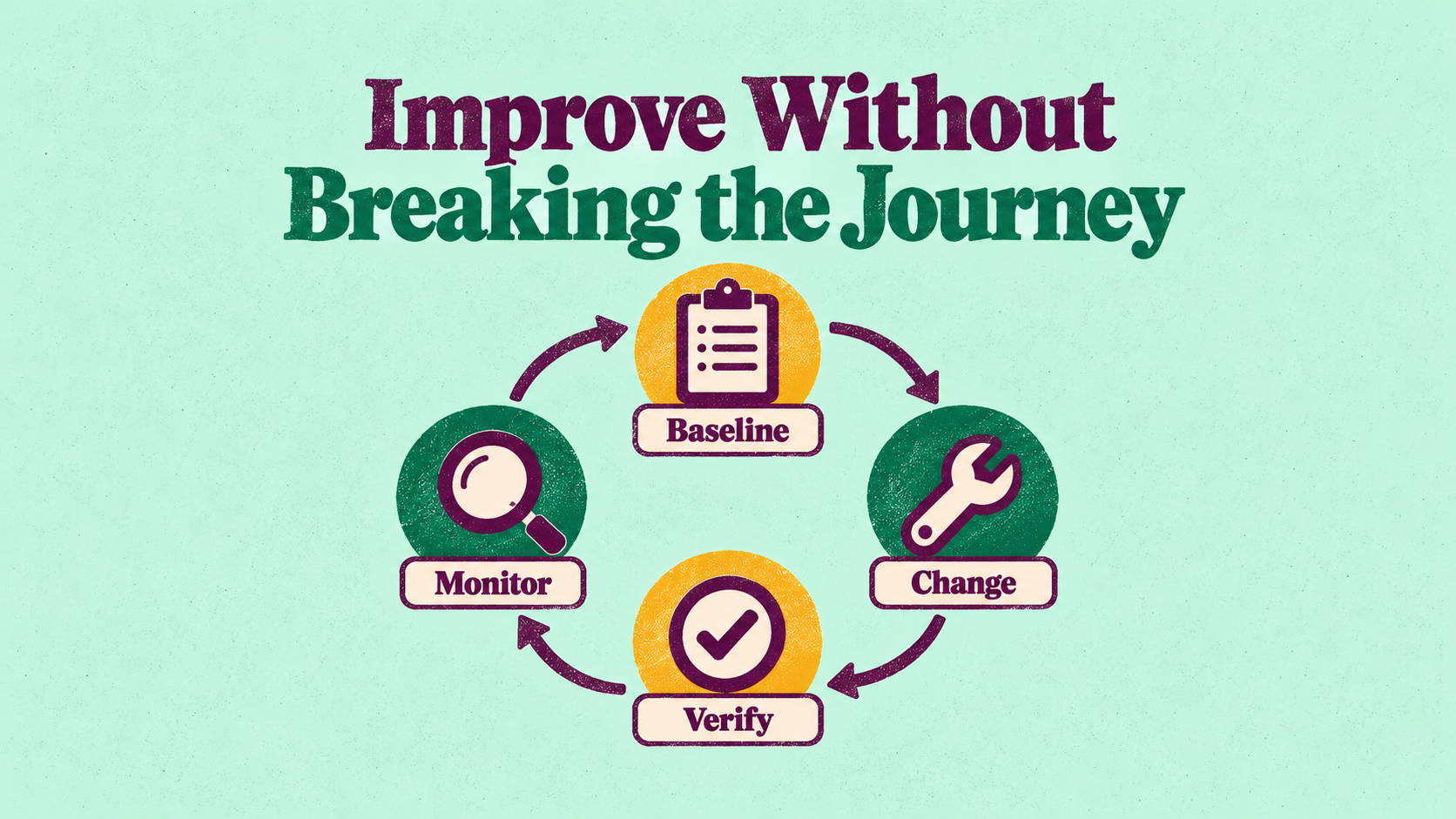
Figure 2. Verify functionality and user experience after every change, then monitor performance to keep the gains.
Largest Contentful Paint (LCP) shows when the main content appears. Interaction to Next Paint (INP) measures how promptly the page responds to interactions. Interpret both alongside customer tasks. If a tool score improves but the form is still hard to complete, the underlying problem remains.
6. Frequently Asked Questions
Should I change hosts first to improve website performance?
You don’t need to start by changing hosts. Confirm whether the server is the bottleneck. If images or interaction code are the main issue, address those first.
Do small business websites need performance testing too?
Yes. Prioritize important tasks. Even on a small site, slow inquiry forms or product pages can cost business opportunities.
Can image compression affect how products are displayed?
Yes. Set different requirements for different uses. A detailed specification image needs a different level of clarity than a decorative image. Check the results on actual screens.
How often should I recheck website performance?
Match your testing schedule to how often the site changes. Retest key pages around redesigns, plugin additions, and major campaigns, and monitor anomalies during day-to-day operations.
7. Conclusion
Start with the tasks customers need to complete and the delays they encounter. Use evidence to prioritize fixes, then verify both functionality and business metrics. A practical first step is to list key URLs and the problems customers commonly encounter.

To decide what to tackle first and define the scope of the work, discuss your current website and team’s needs with LeadsTech.

8. Further Reading
- How Does a CMS Affect SEO? A Guide to CMS Optimization
Learn how content management and site structure affect SEO performance. - How to Choose an SEO or GEO Consultant or Service Provider
Assess what external consultants will deliver, how to validate their work, and what the engagement should cover.
Related Articles

Enterprise AI MarTech Trends Analysis 2024-2029 Outlook Report
From AI content productivity tools to a core engine for revenue growth and marketing transformation
*The PDF will be sent directly to your inbox.
Email Error
Please enter a valid email address.
Thank You!
The whitepaper has been sent to your inbox. If you don’t see it, please check your spam or promotions folder.